Showing posts with label console. Show all posts

Farm and Citrix Servers Not Listed or Displayed in AMC


Farm and Citrix servers are not displayed in AMC (Access Manage Console).


I recently updated a 4.5 presentation server in a vmware test farm and server to AMC 4.6.2. After the update, that went without error, the farm and citrix server nodes in access management console were no longer displayed.
I used the solution found in CTX125827 : http://support.citrix.com/article/CTX125827
I ran the two scripts and the batch file and they worked. The farm showed up first then the presentation server.
After you perform the steps above you might get a discovery error and see ONLY the farm but not the presentation server (xennapp server). Configure discover and add the servers name into the list for discovery. That will get the server node to appear, the published apps, and everything else. If you keep getting discovery errors, the following is what I did:
I went to configuration tools and removed the current configuration and then exited the console, I started the AMC console again then recreated the configuration. NO more discovery errors.
___________________________________________

 Microsoft RDP has increased in usage. It is used by system and server administrators as much as it's used to connect to desktops for users to access applications remotely, such as RDP with RDS (terminal Services). Admins mostly use it for remote administration of the server in their data-centers but can also access users desktop remotely and control their systems with full remote access to correct as software
 
 Microsoft RDP, Remote Control For Administration of Server and Desktops


For those of you who are managing your Citrix Environment user profiles using Liquidware's Profile Unity and are curious as to how the compacting works. Please this post. For more details visit Liquidware's pages. The Screen capture here in this Liquidware Profile Unity Compacting VHD file manually works and works well.  

 
For a cost effective inexpensive remote access software for screen sharing online. Check out and try for free 4RemoteSupport online desktop support software . Even if you're using another software for managing remote computer desktops online such as RMM software intended for MSPs or basic remote access, not all software works all the time and 4RemoteSupport.com allows unlimited connections and is useful to get that first connection to a remote desktop or laptop system to add your RMM software like N-able,  Datto, or Kaseya for example. Online desktop connections with screen-sharing is used by millions or IT people everyday. It's the best tool and method for supporting end-users. 

Citrix XenApp and XenDesktop SQL servers, a Quick and easy PowerShell command line method to show the configured SQL server names.  This easy command line method to display the configured Citrix site database servers logging and monitoring servers (7.x and later permits using different servers for logging and monitoring). 


Share/Save/Bookmark

PC Tech Go: You cannot log on to the console because the server is not synchronized with the database. Upgrade the server and then log on to the console

PC Tech Go: You cannot log on to the console because the server is not synchronized with the database. Upgrade the server and then log on to the console 
Please see the above article post for details. This problem with Symantec's management console was solved without having to remove the entire product.  The original source media was obtained and after running the install,  the console opened properly. 


Share/Save/Bookmark

Reset CISCO 5505 ASA to Factory Default

Reset CISCO 5505 ASA to Factory Default

Reset CISCO 5505 ASA to Factory Default


Share/Save/Bookmark

Enhance your Support Services with Online Desktop Support Software


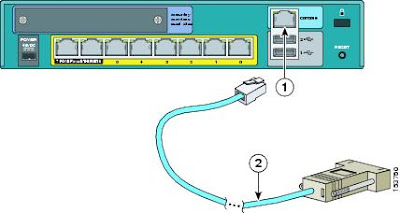
You’ll need to use the Console Port to perform this procedure. Hook up the blue console cable to your DB 9 PIN serial port. Plug the other end into ‘Console’ port on the ASA 5505. The console port looks like a network jack. It’s above the USB ports and is surrounded with a blue color matching the console cable itself and says console right next to the port. Use hyper-terminal, click Start, Programs, Accessories, Communications, HyperTerminal, create a connection on Com1 using the terminal settings: 
    - Bits per second: 9600 
    - Data bits: 8 
    - Parity: None 
    - Stop bits: 1 
    - Flow control: None 
 After you open your connection through hyper-term, press enter a couple times. You should get a prompt similar to the following: ‘ciscoasa>’, or ‘nameofyourdevice>’ type ‘ena’ which is the abbreviation for "enable" to go to enable mode. Enter the password, or just press enter if there is no password set. type ‘config t’ type ‘config factory-default’ hit spacebar when the ‘more’ is displayed to get the next page of output. You want to get back to the prompt that looks like: ‘ciscoasa(config)#’ type ‘reload save-config noconfirm’ Make sure that the outside line is plugged into port zero, and your pc is plugged into any of the ports 1-7. The Cisco ASA has been reset to factory settings. DHCP is enabled on the Cisco device, and it’s internal IP address is now 192.168.1.1! Configure RDP Port Forwarding on a Cisco ASA 5505


Share/Save/Bookmark
Enhance your Support Services with Software for Online Desktop Support
Access servers, desktop, networks switches and even firewalls remotely on the web.  


Fix Error 1603 when you install QuickBooks Desktop

There are many causes to application not behaving as expected, there are of course networking errors. Networking connects devices all across the Internet and in immediate space around you.  Database issues are also caused by networking problems. there are occasion where applications that use databases simply don't install. The cause can be network or a simple compatibility not fully addressed by the software vendor, or the applications release was for up to a specific OS build number. An update on the client device has also been the cause of many application installation issues. A recent encounter with Intuit QuickBooks installation lead me to a solution not present in Intuit's Knowledgebase or forum support. The application installation error code was 1603. QuickBooks error 1603 is not uncommon, but the process to work around it as presented by Intuit support for QuickBooks error 1603 didn't solve it. Many were repetitive, understandable as to why, as that was the common process for solving multiple installation issues but was not successful for me. Those steps to resolve including downloading from Intuit an additional software troubleshooting component didn't resolve the QuickBooks desktop installation issue. In fact, the Intuit installation troubleshooting software also displayed an error. A unique discovery of a work around to QuickBooks error 1603 was found here. 


Featured Post (Selected for You)

Using Microsoft Remote Desktop on a Windows 11 PC - A Step-by-Step Guide

A Step-by-Step Guide to Using Microsoft Remote Desktop on a Windows 11 PC. How to Setup and Access Microsoft Remote Desktop on a Windows 11 ...