Cisco ISP Failover IP SLA Configuration Example

Cisco ISP Failover IP SLA Configuration Example


On some Cisco routers there is the command IP SLA and on other routers it is IP SLA MONITOR. Without going into the reasons for the differences including IOS features and versions, this post will focus and show a working example of IP SLA. To view a similar post containing IP SLA MONITOR please visit the following link:

IP SLA Monitor Example for Fail-over Survivability of ISP .

That post will contain a similar configuration example to the following that uses the ip sla monitor configuration to accomplish the same task of redundancy/failover of an ISP link. Also similar to this post is that the primary interface or ISP for a custom application is a T! and the redundant or fail-over ISP is a DSL.

Configure ASA to allow traceroute responses

Below is a configuration example for IS SLA (no monitor in the command line interface): Cisco IP SLA example configuration (not IP SLA MONITOR) also uses a track list and Boolean operator condition. This was a working configuration so the IP addresses have been modified. The remote office this configuration was used for has a T1 connection to the internet (a "legacy" T1) and a DSL directly attached to the router. The interface for the T1 was 0/3/0:0.1 and the DSL was GigabitEthernet 0/1. they wanted a custom application to use the T1 exclusively but in case there was a T1 internet access failure, they wanted to utilize the DSL as a failover. The custom application was critical to the business. The idea was simple, if the T1 fails, use the DSL for the custom application to connect to an online database source and server. 

There are some other mitigating factors that made this IP SLA configuration a little more challenging but I will not go into it at this time. It is not relevant actually to the commands used. The relevance came in to play in regards to what interfaces were to be used for sourcing the icmp ping used in the ip sla monitor. It is also the reason the line-code tracker in combination with the boolean operator and track list. There are two tracker objects in a tracker list. The list uses a boolean AND, track 10 ip sla 20 reachability --> a ping to a target ip address for which there is ONLY a single static route to use the T1 track 11 interface Serial0/1/0:0 line-protocol --> Interface status track 20 list boolean and --> boolean AND, two both conditions have to be met , almost seems redundant but TAC did this on another remote office router object 10 --> tracker 10 shown above object 11 --> tracker 11 shown above ip route 4.2.2.2 255.255.255.255 192.168.1.11 track 20 --> tracked main route ip route 4.2.2.2 255.255.255.255 192.168.1.1 100 --> alternate route is used if T1 is down ip sla 20 --> referenced in tracker 10 type echo protocol ipIcmpEcho 8.8.8.8 source-interface GigabitEthernet0/0 --> had to use the interface as source, using the ip address did not work. This is the "inside" interface . Yes, I know "inside" is more (another bug, perhaps) , there is a static route that says anny traffic for 8.8.8.8 use the T1 interface. so if there is a problem with the T1 the pings will time out. timeout 1000 --> max ping reply time allowed in milliseconds threshold 2 tag 20 frequency 5 --> status is checked every five seconds ip sla monitor schedule 20 life forever start-time now --> scheduler for monitor 20

Cisco IP SLA Example for ISP failover


Some Cisco routers have IP SLA without the command option of monitor and other Cisco routers have IP SLA MONITOR. The configurations vary slightly, just enough to throw you off just a little. Another simple article (or post) on a tech support for computers, servers, and routers blog site. It describes an example of how IP SLA was used for redundancy and how fears of asynchronous routing were dismissed. From what I have seen and found, support for ip sla monitor started at about the 12.3 release of Cisco's IOS for routers. The two connections or paths to a destination or the internet as it is most often used for, don't even have to be directly connected to the router.


Cisco ISP Failover IP SLA Configuration Example


Share/Save/Bookmark
Enhance your Support Services with Software for Online Desktop Support


An inexpensive cost-effective remote desktop software for screen sharing online. Check out and try for free 4RemoteSupport's online desktop support software . Even if you have other software for managing remote desktops such as MSP RMM, not all software works all the time and 4RemoteSupport.com allows unlimited connections and is useful to get that first connection to a remote desktop or laptop system to add your RMM software like Nable, Datto, or Kaseya for example


Farm and Citrix Servers Not Listed or Displayed in AMC


Farm and Citrix servers are not displayed in AMC (Access Manage Console).


I recently updated a 4.5 presentation server in a vmware test farm and server to AMC 4.6.2. After the update, that went without error, the farm and citrix server nodes in access management console were no longer displayed.
I used the solution found in CTX125827 : http://support.citrix.com/article/CTX125827
I ran the two scripts and the batch file and they worked. The farm showed up first then the presentation server.
After you perform the steps above you might get a discovery error and see ONLY the farm but not the presentation server (xennapp server). Configure discover and add the servers name into the list for discovery. That will get the server node to appear, the published apps, and everything else. If you keep getting discovery errors, the following is what I did:
I went to configuration tools and removed the current configuration and then exited the console, I started the AMC console again then recreated the configuration. NO more discovery errors.
___________________________________________

 Microsoft RDP has increased in usage. It is used by system and server administrators as much as it's used to connect to desktops for users to access applications remotely, such as RDP with RDS (terminal Services). Admins mostly use it for remote administration of the server in their data-centers but can also access users desktop remotely and control their systems with full remote access to correct as software
 
 Microsoft RDP, Remote Control For Administration of Server and Desktops


For those of you who are managing your Citrix Environment user profiles using Liquidware's Profile Unity and are curious as to how the compacting works. Please this post. For more details visit Liquidware's pages. The Screen capture here in this Liquidware Profile Unity Compacting VHD file manually works and works well.  

 
For a cost effective inexpensive remote access software for screen sharing online. Check out and try for free 4RemoteSupport online desktop support software . Even if you're using another software for managing remote computer desktops online such as RMM software intended for MSPs or basic remote access, not all software works all the time and 4RemoteSupport.com allows unlimited connections and is useful to get that first connection to a remote desktop or laptop system to add your RMM software like N-able,  Datto, or Kaseya for example. Online desktop connections with screen-sharing is used by millions or IT people everyday. It's the best tool and method for supporting end-users. 

Citrix XenApp and XenDesktop SQL servers, a Quick and easy PowerShell command line method to show the configured SQL server names.  This easy command line method to display the configured Citrix site database servers logging and monitoring servers (7.x and later permits using different servers for logging and monitoring). 


Share/Save/Bookmark

Migrating Printers to 2008 Server SBS from 2003 Server

More information about Print Management on Windows 2008 Server, including Windows SBS 2008 can be found at http://technet.microsoft.com/en-us/library/cc753109(WS.10).aspx  (Since the time of this writing, Microsoft changed names from SBS to Server Essentials)

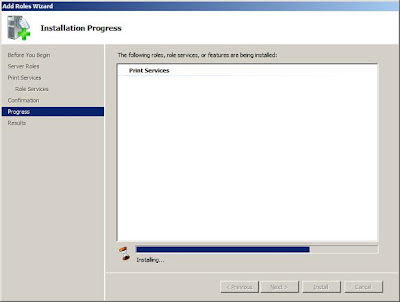
Start with adding te printer services role as shown above. This is done through server manager, click on the roles link in the upper right then select (check the box) Print Services . On the next step you can leave the default for most environments. Print server is the only option selected on a default installation of Printer Services on 2008 server.


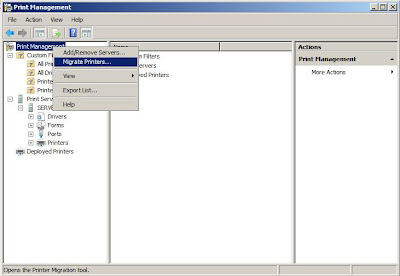
The migrate print server link shown near the bottom of the first/top image in this post has the following information:
To migrate print servers by using Print Management


- Open the Administrative Tools folder, and then click on Print Management.
- In the Print Management tree pane , right-click on the name of the computer that has the printer queues that you want to export from (this is your source server), and then click Export printers to a file option. This launches the Printer Migration Wizard.
- On the Select the file location page, specify the location to save the printer settings, and then click Next to save the printers.
- Right-click the destination or target computer (this should be your 2008 server, standard or SBS) on which you want to import the printers and have them accessible for your clients, and then click on the Import printers from a file option. This launches the Printer Migration Wizard.
- On the Select the file location page, specify the location of the printer settings file, and then click Next.
- On the Select import options page, specify the following import options:
Import mode. Specifies what to do if a specific print queue already exists on the destination computer.
List in the directory. Specifies whether to publish the imported print queues in the Active Directory Domain Services.
Convert LPR Ports to Standard Port Monitors. Specifies whether to convert Line Printer Remote (LPR) printer ports in the printer settings file to the faster Standard Port Monitor when importing printers.
- Click Next to import the printers.


___________________________________________

 Microsoft RDp has increased in usage. it is used by sysm and server administrators as much as it's used to connect to desktops for users to access applications remotely, such as RDP with RDS (terminal Services). Admins mostly use it for remote administration of the server in their datacenters but can also access users desktop remotely and control their systems with full remote access to correct as software
 
 Microsoft RDP, Remote Control For Administration of Server and Desktops


Password Complexity for SBS 2003 to 2008 Migration

Windows Server 2008 Password Policy Setting Recommendations

The following excerpt is from the Small Business Server 2008 Setup and Migration Help File:

"Password policies in Windows SBS 2008 enforce strong passwords by default, and the password policies dialog in the Windows SBS Console writes the configuration to the default domain policy. The password policy configuration is not written to the Small Business Server Domain Password Policy object, as in Windows SBS 2003. "

The password complexity is a small over-come-able problem that you could encounter during a migration from SBS2003 to SBS2008. The password complexity could lead to an even getting logged in the SBS migration and setup logs. The even doesn't tell you it's the complexity of the administrator account password, but instead leads you to believe that it the directory services restore mode password that has a problem. The complexity of the pasword required varies depending on the stage of the install. The 2008 SBS server when joining the domain is a client and uses it's own local policy which at this point is no password is required. when joining the domain, it uses the default policy for a domain controller not the policy that is already set for the domain controller in the domain group policy. once in the domain, it will use the policy that has already been established. So, when creating your answer file be sure to have a password complexity matching 8 characters and included uppercase, lower case, a number or a special character (!,@,#,$,%,etc>). If the administrator account that is being used for the migration does not match these characteristics then the migration will fail with and error "FATAL: DcPromo_JoinDomain: The server was not promoted to a domain controller" and an error telling you that "The Directory Services restore Mode password does not meet its complexity criteria" . BEFORE starting the migration, make the administrator password or the password for the administrator account that will be used for the migration match complexity requirements. I recommend, OVERMATCHING!, or you could be formatting the installation of the new SBS2008 server and trying the migration again. Use 14 characters or more is the main recommended action to over match - that's what I did.


.

PC Tech Go: You cannot log on to the console because the server is not synchronized with the database. Upgrade the server and then log on to the console

PC Tech Go: You cannot log on to the console because the server is not synchronized with the database. Upgrade the server and then log on to the console 
Please see the above article post for details. This problem with Symantec's management console was solved without having to remove the entire product.  The original source media was obtained and after running the install,  the console opened properly. 


Share/Save/Bookmark

Featured Post (Selected for You)

Using Microsoft Remote Desktop on a Windows 11 PC - A Step-by-Step Guide

A Step-by-Step Guide to Using Microsoft Remote Desktop on a Windows 11 PC. How to Setup and Access Microsoft Remote Desktop on a Windows 11 ...