Display Dell System Service Tag using Command Line

Use Command Line to Display Dell System Service Tag

This simple process works for desktops, laptops and servers. 


Share/Save/Bookmark

On  Windows system, all you need to display the service tag of a Dell computer desktop or server is built right into the operating system. Access to the command is as simple as just opening a command prompt window and run the following command:  

c:\> wmic bios get serialnumber

On the very next line the Dell service tag will be displayed. On a HP server or desktop, the same command will return the serial number. This is the serial number that is used to look-up drivers, software, or parts for your server or computer desktop, laptop or other device. 
Dell BCM or other third-party utilities are not needed. The service tag can be displayed in less than a minute or even seconds. Copy and paste the command into a Windows command window ("dos window" or "dos box") and hit enter. The functionality is built right into Windows. 


Command line to get the serial number or service tag of a white-box computer 

"White-box" systems might not return the desired results. if the manufacturer has not entered a service tag type of unique identifying number, then the following will be displayed "To Be Filled by O.E.M.".  


Retrieving the system serial number or Dell service tag on Linux using command line

The ability to retrieve the service tag or serial number of a system is not limited to Similarly to Windows, Linux has the functionality to retrieve and display the Dell service tag or system serial number of a system using a command line. The command line will differ of course. On Cent OS or Red Hat Linux for example, run the following command to retrieve the serial number or Dell service tag.

Command To Find Out Dell Service Tag

      # dmidecode | grep -i serial      
or 
      # dmidecode -t 1

 DMIDECODE might have to be installed first and can be installed by executing the following: 
       
# yum -y install dmidecode


WMIC and RDP Connections

Moreover, on Microsoft desktop or server operating systems, the CLI commands could also be run through an RDP connection session initiated and managed online by RDP connections management software. MacOS and Linux can also have RDP connection capabilities enabled but can more easily be used to manage RDP connections with an Online RDP connections manager using only a web-browser without add-ons or applications installed.  


Share/Save/Bookmark
Enhance your Support Services with Online Desktop Support Software. 


Provide better backups and disaster recovery. Recent setup of Azure blob storage for Veeam in Azure for a cloud offsite copy of Veeam backups. Online Support 
It was simpler than expected. It was similar if not exactly the same as setting up Azure storage for Azure Site replication. See the post below, not a step by step but briefly describes the simplicity. 


Netdom Access denied Resetting Machine Password

Netdom Access Denied Resetting Domain Controller Machine Password


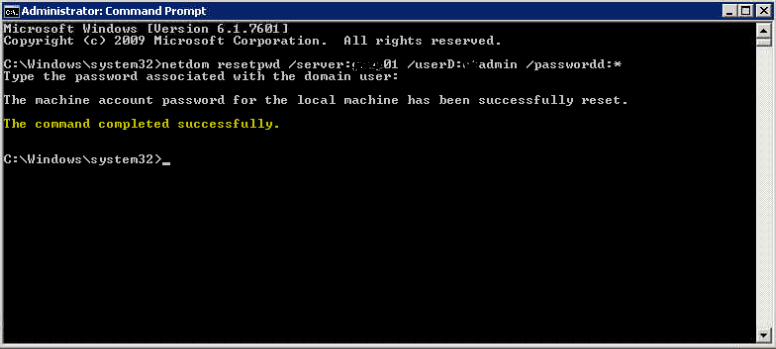
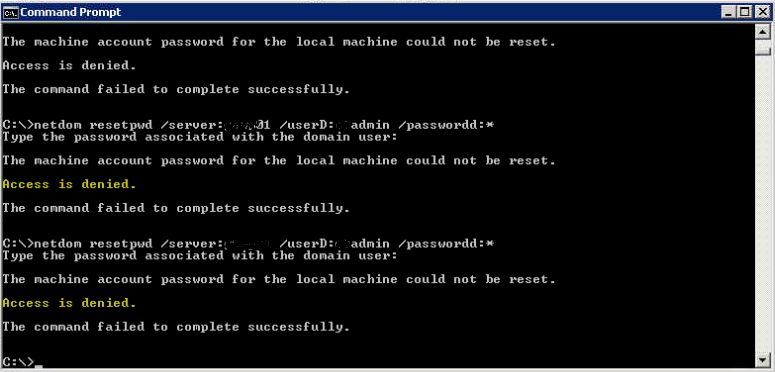
When trying to reset the machine account password using netdom, an access denied message is displayed. 


The machine account password for the local machine could not be reset.

This issue can be resolved by using an elevated command prompt.

Run the same netdom command to reset the local machine password from an elevated command prompt


Inexpensive cost effective remote desktop software for screen sharing online. Check out and try for free 4RemoteSupport's online desktop support software . Even if you have other software for managing remote desktops such as MSP RMM, not all software works all the time and 4RemoteSupport.com allows unlimited connections and is useful to get that first connection to a remote desktop or laptop system to add your RMM software like Datto or Nable.


Share/Save/Bookmark

Enhance your Support Services with Software for Online Desktop Support. 


Using Cent OS for VMware vCloud Director

When preparing and planning to install vCloud Director by VMware to provide a foundation of cloud services such as IaaS (Infrastructure as a Service), there are choices for which operating system can be used for some of the components.
Although there are choices, some are at no cost as they are freely distributable open source GNU licensed and others require a purchase to legally own and use the operating system for its intended use.

In the case of VMware vCloud Director installation and preparation, the choices for the operating system to use are all Linux based but can be Cent OS which is free and the other is Red Hat Enterprise Linux Server distribution which is not free - it is sold as a subscription. The lowest subscription is for two VMs and costs about the same as Windows Standard Edition server license. I do recall the time when it was free many years ago. The benefit is commercial support for the product. with Cent OS , your on your own except for tech forums.

Cent OS is freely downloadable and you may install it as many instances as needed both on physical systems and/or on virtual.

Failover then Failback of vCloud Director

For this VMware vCloud deployment, two Directors (vCD ) were installed. Two or more vCloud Directors can be load balanced by a typical http/https web load balancer. For this installation there were two but they were in a primary secondary configuration. The second director is a warm standby to the first. Failover was tested using two methods. One was to shut the vCloud Director VM off and the other was to just disconnect the virtual network interface card. The secondary vCloud Director started to take over fully at about 30 to 40 seconds in bot tests. No manual intervention was required. Failback of vCloud Director was not automatic. The secondary remained in charge and only when it was also turned off or the nic disabled was the a fallback.

VMware vCloud Director Using Cent OS for Operating system


As far as the installation of Cent OS for vCloud director, it had no real issues. The default install option of "Minimal" for Cent OS leaves too much networking and UI out to be a default for the VMware cloud solution. At a minimum, select Basic Server. Add desktops before by selecting Customize Now.


Issues or Problems using Cent OS for vCloud Director 

 The main and only issue encountered was the networking. One of the two system had an issue with routing. The vCloud Director installation requires two network interfaces for director. The ip addresses were assigned appropriately. Eth0 got one static ip address and the other network interface Eth1 was assigned another static ip address. They bot responded to pings however it was discovered that routing for these ping replies were coming from only one of the NICs . The other would see receive packets but never transmitted. One network interface card on the Cent OS was doing the transmitting for both nics.

This was fixed by modifying a configuration file related to routing at the Cent OS Linux level. This was not a VMware vCloud Director installation error.

Using Cent OS for VMware vCloud Director

I used Cent OS 6.4 x64 for a recent deployment of VMware vCloud Director. At the time of this writing Cent OS 6.5 was released, only a couple of months after the installation was completed. I recommend using Cent OS for vCloud Director. Neither server deployment has had any issues, not even a restart has been required since. The SSL certs also installed very easily with no issues, even swapping out the self signed certificate with a CA signed certificate presented no issue. You just nee to be able to work with a command line. It is proven to be fast enough to handle the role and on a tight budget, it is well worth it. Only minor issues were encountered that were easily solvable.


Cisco ISP Failover IP SLA Configuration Example

Cisco ISP Failover IP SLA Configuration Example


On some Cisco routers there is the command IP SLA and on other routers it is IP SLA MONITOR. Without going into the reasons for the differences including IOS features and versions, this post will focus and show a working example of IP SLA. To view a similar post containing IP SLA MONITOR please visit the following link:

IP SLA Monitor Example for Fail-over Survivability of ISP .

That post will contain a similar configuration example to the following that uses the ip sla monitor configuration to accomplish the same task of redundancy/failover of an ISP link. Also similar to this post is that the primary interface or ISP for a custom application is a T! and the redundant or fail-over ISP is a DSL.

Configure ASA to allow traceroute responses

Below is a configuration example for IS SLA (no monitor in the command line interface): Cisco IP SLA example configuration (not IP SLA MONITOR) also uses a track list and Boolean operator condition. This was a working configuration so the IP addresses have been modified. The remote office this configuration was used for has a T1 connection to the internet (a "legacy" T1) and a DSL directly attached to the router. The interface for the T1 was 0/3/0:0.1 and the DSL was GigabitEthernet 0/1. they wanted a custom application to use the T1 exclusively but in case there was a T1 internet access failure, they wanted to utilize the DSL as a failover. The custom application was critical to the business. The idea was simple, if the T1 fails, use the DSL for the custom application to connect to an online database source and server. 

There are some other mitigating factors that made this IP SLA configuration a little more challenging but I will not go into it at this time. It is not relevant actually to the commands used. The relevance came in to play in regards to what interfaces were to be used for sourcing the icmp ping used in the ip sla monitor. It is also the reason the line-code tracker in combination with the boolean operator and track list. There are two tracker objects in a tracker list. The list uses a boolean AND, track 10 ip sla 20 reachability --> a ping to a target ip address for which there is ONLY a single static route to use the T1 track 11 interface Serial0/1/0:0 line-protocol --> Interface status track 20 list boolean and --> boolean AND, two both conditions have to be met , almost seems redundant but TAC did this on another remote office router object 10 --> tracker 10 shown above object 11 --> tracker 11 shown above ip route 4.2.2.2 255.255.255.255 192.168.1.11 track 20 --> tracked main route ip route 4.2.2.2 255.255.255.255 192.168.1.1 100 --> alternate route is used if T1 is down ip sla 20 --> referenced in tracker 10 type echo protocol ipIcmpEcho 8.8.8.8 source-interface GigabitEthernet0/0 --> had to use the interface as source, using the ip address did not work. This is the "inside" interface . Yes, I know "inside" is more (another bug, perhaps) , there is a static route that says anny traffic for 8.8.8.8 use the T1 interface. so if there is a problem with the T1 the pings will time out. timeout 1000 --> max ping reply time allowed in milliseconds threshold 2 tag 20 frequency 5 --> status is checked every five seconds ip sla monitor schedule 20 life forever start-time now --> scheduler for monitor 20

Cisco IP SLA Example for ISP failover


Some Cisco routers have IP SLA without the command option of monitor and other Cisco routers have IP SLA MONITOR. The configurations vary slightly, just enough to throw you off just a little. Another simple article (or post) on a tech support for computers, servers, and routers blog site. It describes an example of how IP SLA was used for redundancy and how fears of asynchronous routing were dismissed. From what I have seen and found, support for ip sla monitor started at about the 12.3 release of Cisco's IOS for routers. The two connections or paths to a destination or the internet as it is most often used for, don't even have to be directly connected to the router.


Cisco ISP Failover IP SLA Configuration Example


Share/Save/Bookmark
Enhance your Support Services with Software for Online Desktop Support. 


An inexpensive cost-effective remote desktop software for screen sharing online. Check out and try for free 4RemoteSupport's online desktop support software . Even if you have other software for managing remote desktops such as MSP RMM, not all software works all the time and 4RemoteSupport.com allows unlimited connections and is useful to get that first connection to a remote desktop or laptop system to add your RMM software like Nable, Datto, or Kaseya for example. 


Farm and Citrix Servers Not Listed or Displayed in AMC


Farm and Citrix servers are not displayed in AMC (Access Manage Console).


I recently updated a 4.5 presentation server in a vmware test farm and server to AMC 4.6.2. After the update, that went without error, the farm and citrix server nodes in access management console were no longer displayed.
I used the solution found in CTX125827 : http://support.citrix.com/article/CTX125827
I ran the two scripts and the batch file and they worked. The farm showed up first then the presentation server.
After you perform the steps above you might get a discovery error and see ONLY the farm but not the presentation server (xennapp server). Configure discover and add the servers name into the list for discovery. That will get the server node to appear, the published apps, and everything else. If you keep getting discovery errors, the following is what I did:
I went to configuration tools and removed the current configuration and then exited the console, I started the AMC console again then recreated the configuration. NO more discovery errors.
___________________________________________

 Microsoft RDP has increased in usage. It is used by system and server administrators as much as it's used to connect to desktops for users to access applications remotely, such as RDP with RDS (terminal Services). Admins mostly use it for remote administration of the server in their data-centers but can also access users desktop remotely and control their systems with full remote access to correct as software
 
 Microsoft RDP, Remote Control For Administration of Server and Desktops


For those of you who are managing your Citrix Environment user profiles using Liquidware's Profile Unity and are curious as to how the compacting works. Please this post. For more details visit Liquidware's pages. The Screen capture here in this Liquidware Profile Unity Compacting VHD file manually works and works well.  

 
For a cost effective inexpensive remote access software for screen sharing online. Check out and try for free 4RemoteSupport online desktop support software . Even if you're using another software for managing remote computer desktops online such as RMM software intended for MSPs or basic remote access, not all software works all the time and 4RemoteSupport.com allows unlimited connections and is useful to get that first connection to a remote desktop or laptop system to add your RMM software like N-able,  Datto, or Kaseya for example. Online desktop connections with screen-sharing is used by millions or IT people everyday. It's the best tool and method for supporting end-users. 

Citrix XenApp and XenDesktop SQL servers, a Quick and easy PowerShell command line method to show the configured SQL server names.  This easy command line method to display the configured Citrix site database servers logging and monitoring servers (7.x and later permits using different servers for logging and monitoring). 


Share/Save/Bookmark

Featured Post (Selected for You)

Using Microsoft Remote Desktop on a Windows 11 PC - A Step-by-Step Guide

A Step-by-Step Guide to Using Microsoft Remote Desktop on a Windows 11 PC. How to Setup and Access Microsoft Remote Desktop on a Windows 11 ...