Simple Command to Display your SID


Simple Command to Display your SID

Two methods covered here are: 

        1. the whoami command 
        2. and wmic useraccount

One of the simplest commands to display your SID when logged into a domain joined desktop is using a command that's been a part of the Windows operating system even before windows 10.  

The whoami command displayed your current login. If you are providing remote support, this is also helpful if you are remotely accessing the desktop and troubleshooting an issue that requires knowing the user's SID. 

open a command prompt and run the command whoami and hit enter. The command;s' output displays the logged in user. 

run the command again and use the option /user and it will display the SID of the user like this: 

           C:\whoami /user 
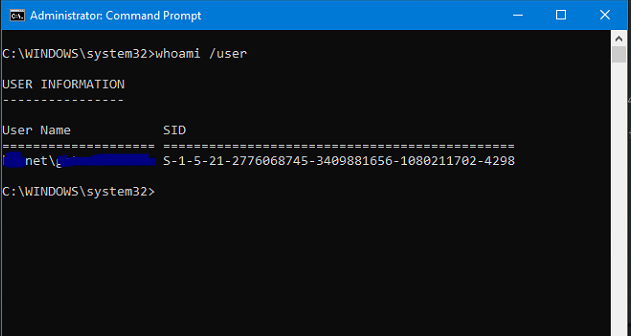


CLI Command to Display User SID

To display the local Windows User SID, no domain use the following command line 
       
          wmic useraccount where name='username' get sid

Please share this link and post so others could find these two simple solutions faster and easier. Thank you. 

Share/Save/Bookmark


Whether you're using the command line to get information or solve a problem for yourself, or helping a friend or users in your office or local home network. Administrators and just plain computer users can access desktops remotely with online software for desktop support. Online Software for PC Support permits access to desktop. Perform screen-sharing and run commands or diagnostics. It's software to remotely access for remote control desktop computers, laptops, and servers to provided better support.  Affordable Online Remote Support Software for web based desktop screen sharing with unlimited connections and sessions. Try now. .


Show Database Server Name and Status of Connection - Citrix Delivery Controller

Support


Share/Save/Bookmark

Xenapp/Xendesktop - Find or Show the Citrix SQL server name Quickly and Check the Status

By checking to see if we are currently and correctly connected to both the Monitor and Configuration Logging database, the SQL server name will be displayed int he process plus the status. 

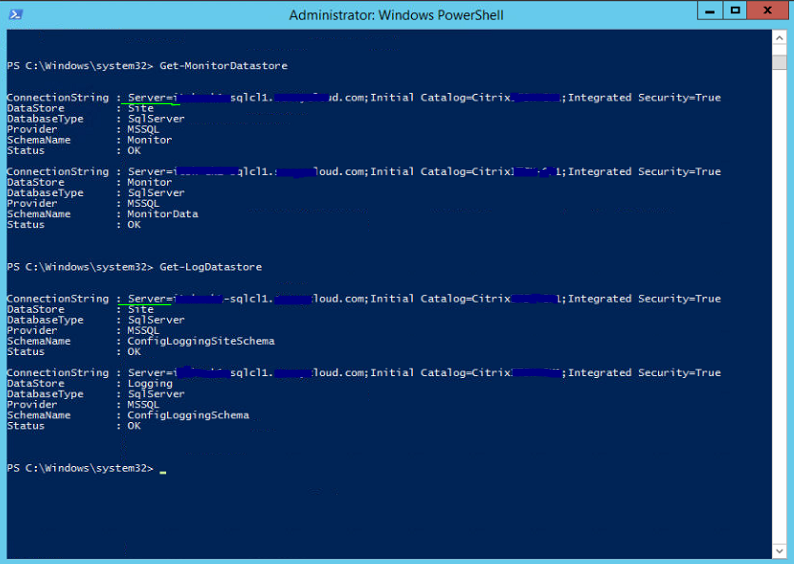
Open PowerShell on the delivery controller , don't forget to open "as administrator". And run the following commands to show the Citrix SQL server configured Citrix Studio and Site

    asnp Citrix.*

   To verify if we are correctly connecting to the required database 

    Get-MonitorDatastore

    Get-LogDatastore


The results of running the above PowerShell commands are shown below. Easy simple commands to display the server's name configured for the Site/Citrix Farm 
I've blotched out some names but the server's name is shown in the connection string. 


Citrix Releases
 7.x and later, there could be separate databases for Monitoring and Logging so therefore, one Connection string for Monitor/Logging service points to the Citrix site's datastore and one string of Monitor/Logging service points to the Monitor/Logging datastore.


Citrix as we know, is a fantastic system for providing desktop access to users. Support remote desktops and remote servers and Enhance Support Services with Online Desktop Support Software.  Screen-Sharing Remote Access Online of Remote Computers within seconds. Online desktop software is not limited to physical desktops or servers but can be and is utilized by virtual machines just as well. All virtual machines are supported, not just vmware vcenter and Microsoft hyper-v.

A post from the past regarding when the Farm's servers are not displayed in the management console, Farm and Citrix Servers Not Listed or Displayed in Console . It may still be extremely useful today for those still running past XenApp/XenDesktop servers and services. 


Display Dell System Service Tag using Command Line

Use Command Line to Display Dell System Service Tag

This simple process works for desktops, laptops and servers. 


Share/Save/Bookmark

On  Windows system, all you need to display the service tag of a Dell computer desktop or server is built right into the operating system. Access to the command is as simple as just opening a command prompt window and run the following command:  

c:\> wmic bios get serialnumber

On the very next line the Dell service tag will be displayed. On a HP server or desktop, the same command will return the serial number. This is the serial number that is used to look-up drivers, software, or parts for your server or computer desktop, laptop or other device. 
Dell BCM or other third-party utilities are not needed. The service tag can be displayed in less than a minute or even seconds. Copy and paste the command into a Windows command window ("dos window" or "dos box") and hit enter. The functionality is built right into Windows. 


Command line to get the serial number or service tag of a white-box computer 

"White-box" systems might not return the desired results. if the manufacturer has not entered a service tag type of unique identifying number, then the following will be displayed "To Be Filled by O.E.M.".  


Retrieving the system serial number or Dell service tag on Linux using command line

The ability to retrieve the service tag or serial number of a system is not limited to Similarly to Windows, Linux has the functionality to retrieve and display the Dell service tag or system serial number of a system using a command line. The command line will differ of course. On Cent OS or Red Hat Linux for example, run the following command to retrieve the serial number or Dell service tag.

Command To Find Out Dell Service Tag

      # dmidecode | grep -i serial      
or 
      # dmidecode -t 1

 DMIDECODE might have to be installed first and can be installed by executing the following: 
       
# yum -y install dmidecode


WMIC and RDP Connections

Moreover, on Microsoft desktop or server operating systems, the CLI commands could also be run through an RDP connection session initiated and managed online by RDP connections management software. MacOS and Linux can also have RDP connection capabilities enabled but can more easily be used to manage RDP connections with an Online RDP connections manager using only a web-browser without add-ons or applications installed.  


Share/Save/Bookmark
Enhance your Support Services with Online Desktop Support Software


Provide better backups and disaster recovery. Recent setup of Azure blob storage for Veeam in Azure for a cloud offsite copy of Veeam backups. Online Support 
It was simpler than expected. It was similar if not exactly the same as setting up Azure storage for Azure Site replication. See the post below, not a step by step but briefly describes the simplicity. 


Netdom Access denied Resetting Machine Password

Netdom Access Denied Resetting Domain Controller Machine Password


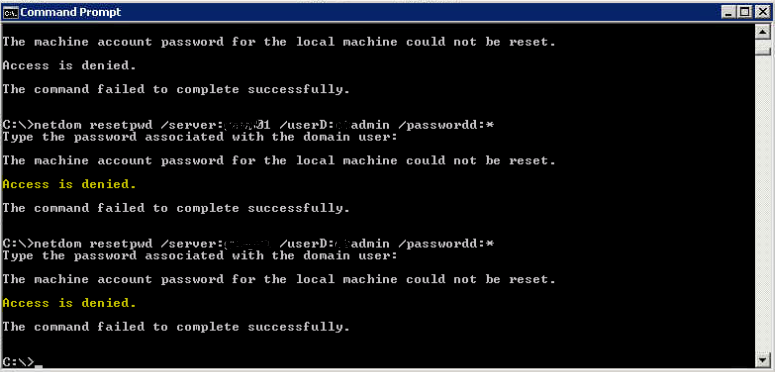
When trying to reset the machine account password using netdom, an access denied message is displayed. 


The machine account password for the local machine could not be reset.

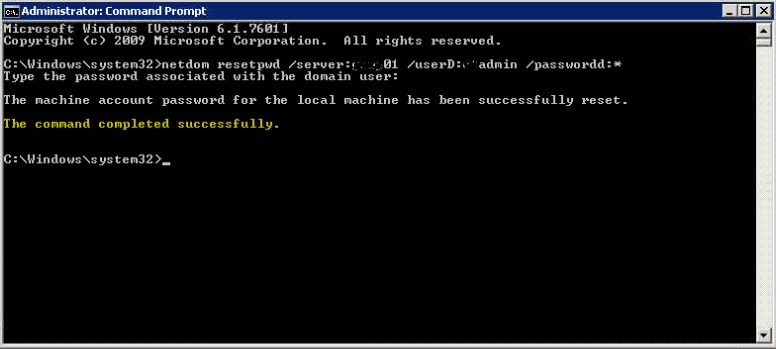
This issue can be resolved by using an elevated command prompt.

Run the same netdom command to reset the local machine password from an elevated command prompt


Inexpensive cost effective remote desktop software for screen sharing online. Check out and try for free 4RemoteSupport's online desktop support software . Even if you have other software for managing remote desktops such as MSP RMM, not all software works all the time and 4RemoteSupport.com allows unlimited connections and is useful to get that first connection to a remote desktop or laptop system to add your RMM software like Datto or Nable.


Share/Save/Bookmark

Enhance your Support Services with Software for Online Desktop Support


Using Cent OS for VMware vCloud Director

When preparing and planning to install vCloud Director by VMware to provide a foundation of cloud services such as IaaS (Infrastructure as a Service), there are choices for which operating system can be used for some of the components.
Although there are choices, some are at no cost as they are freely distributable open source GNU licensed and others require a purchase to legally own and use the operating system for its intended use.

In the case of VMware vCloud Director installation and preparation, the choices for the operating system to use are all Linux based but can be Cent OS which is free and the other is Red Hat Enterprise Linux Server distribution which is not free - it is sold as a subscription. The lowest subscription is for two VMs and costs about the same as Windows Standard Edition server license. I do recall the time when it was free many years ago. The benefit is commercial support for the product. with Cent OS , your on your own except for tech forums.

Cent OS is freely downloadable and you may install it as many instances as needed both on physical systems and/or on virtual.

Failover then Failback of vCloud Director

For this VMware vCloud deployment, two Directors (vCD ) were installed. Two or more vCloud Directors can be load balanced by a typical http/https web load balancer. For this installation there were two but they were in a primary secondary configuration. The second director is a warm standby to the first. Failover was tested using two methods. One was to shut the vCloud Director VM off and the other was to just disconnect the virtual network interface card. The secondary vCloud Director started to take over fully at about 30 to 40 seconds in bot tests. No manual intervention was required. Failback of vCloud Director was not automatic. The secondary remained in charge and only when it was also turned off or the nic disabled was the a fallback.

VMware vCloud Director Using Cent OS for Operating system


As far as the installation of Cent OS for vCloud director, it had no real issues. The default install option of "Minimal" for Cent OS leaves too much networking and UI out to be a default for the VMware cloud solution. At a minimum, select Basic Server. Add desktops before by selecting Customize Now.


Issues or Problems using Cent OS for vCloud Director 

 The main and only issue encountered was the networking. One of the two system had an issue with routing. The vCloud Director installation requires two network interfaces for director. The ip addresses were assigned appropriately. Eth0 got one static ip address and the other network interface Eth1 was assigned another static ip address. They bot responded to pings however it was discovered that routing for these ping replies were coming from only one of the NICs . The other would see receive packets but never transmitted. One network interface card on the Cent OS was doing the transmitting for both nics.

This was fixed by modifying a configuration file related to routing at the Cent OS Linux level. This was not a VMware vCloud Director installation error.

Using Cent OS for VMware vCloud Director

I used Cent OS 6.4 x64 for a recent deployment of VMware vCloud Director. At the time of this writing Cent OS 6.5 was released, only a couple of months after the installation was completed. I recommend using Cent OS for vCloud Director. Neither server deployment has had any issues, not even a restart has been required since. The SSL certs also installed very easily with no issues, even swapping out the self signed certificate with a CA signed certificate presented no issue. You just nee to be able to work with a command line. It is proven to be fast enough to handle the role and on a tight budget, it is well worth it. Only minor issues were encountered that were easily solvable.


Featured Post (Selected for You)

Using Microsoft Remote Desktop on a Windows 11 PC - A Step-by-Step Guide

A Step-by-Step Guide to Using Microsoft Remote Desktop on a Windows 11 PC. How to Setup and Access Microsoft Remote Desktop on a Windows 11 ...